
Stream in.
Clips out.
Video editing tool that finds highlight moments in stream archives and exports them as vertical clips
- Version
- Latest release
- File size
- See the releases page
- Platform
- Windows 64-bit
- License
- Apache-2.0
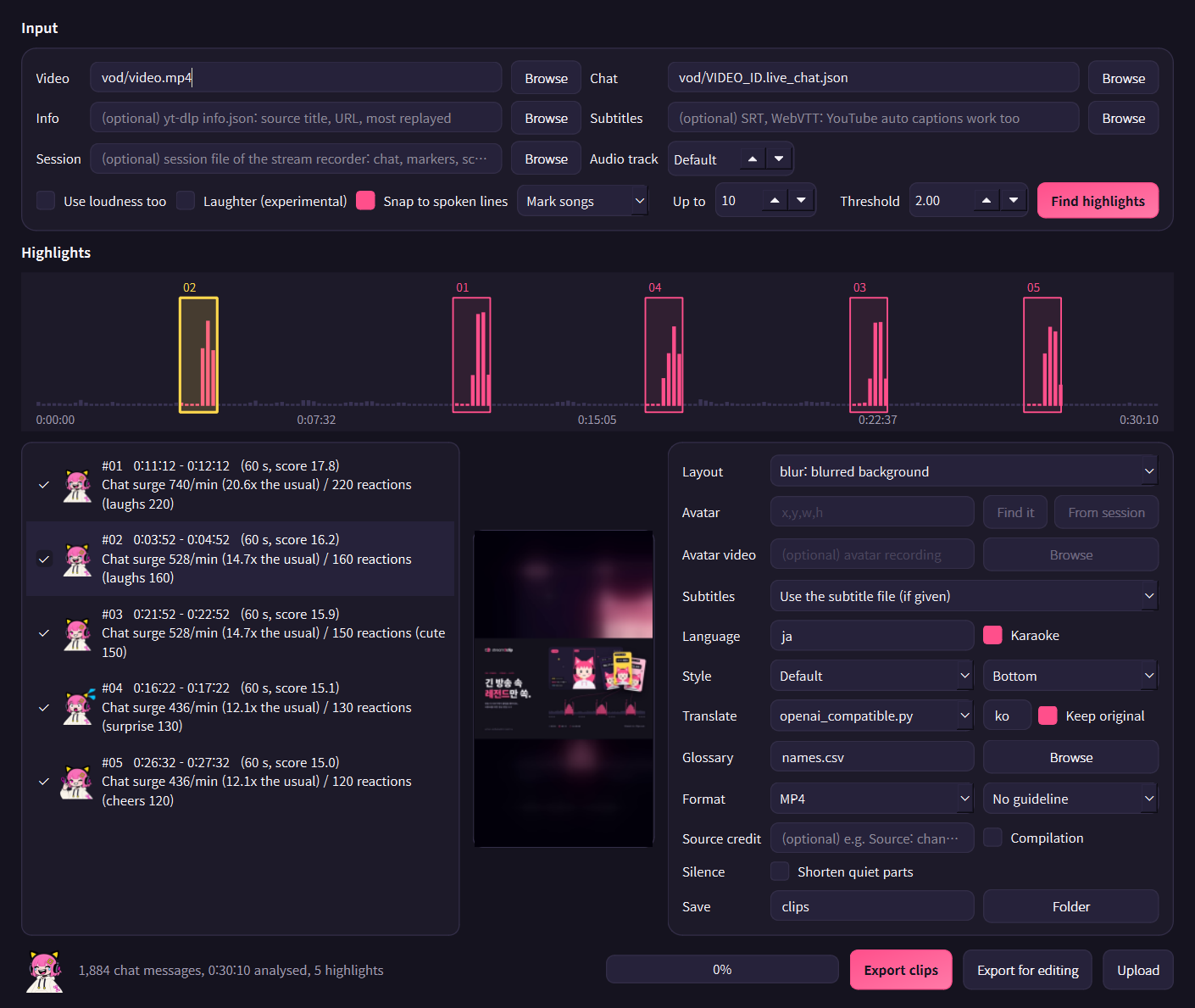


- Chat activity
- Detected span
- 9:16 vertical clip
Download
| Package | Windows installer (setup.exe) or zip file. Contains the app stream2clip-gui.exe and the command line tool stream2clip.exe |
|---|---|
| Platform | Windows 64-bit. Verified on Windows 11 |
| Requirement | ffmpeg (video conversion). Downloaded during the installation |
| Installation | The installer asks for the language (Korean, Japanese, English). No administrator rights needed. The zip file is unzipped and run |
| Code signing | Not signed. Windows SmartScreen may show a warning. The Python package is recommended where Smart App Control is on |
| Integrity | Compare with the SHA-256 value on the releases page |
| Separate install | Speech-to-text subtitles (Whisper) and YouTube upload are provided by the Python package |
| Other systems | macOS and Linux: Python package. Python 3.10 or later |
| Android (beta) | Phone app. The APK is attached to the releases. App page and installation |
Installation steps
- Download the installer and run it
- Choose the language on the first page. The app is shown in that language
- On the additional tasks page, keep Download ffmpeg ticked and install
- Start stream2clip from the Start menu
Without installing: download the zip file, unzip it and run stream2clip-gui.exe. ffmpeg is downloaded with the button on the start window
Python package
pip install "stream2clip[gui,ingest,obs] @ git+https://github.com/BudongJW/stream2clip"Features
- Highlight detection
- Detection by comparing chat volume, number of chatters, reaction words and paid messages with the average of each stream
- Moving and resizing of spans on the timeline
- Loudness analysis, marking or exclusion of singing sections
- Start from a stream address
- Chat collection and highlight detection from the address alone
- Download of the selected spans only
- YouTube, CHZZK and SOOP archives
- Vertical clips and subtitles
- Five 9:16 layouts: blur, center, fit, stack, pip
- Karaoke subtitles, subtitle translation, glossary
- Description text with the title and address of the source stream
- Android app (beta)
- Highlights from a replay address typed on the phone or shared from the CHZZK, SOOP or YouTube app
- The same detection, titles, hashtags and description text as the desktop app. Title and on-video text editable per clip
- 1080x1920 Shorts made from the highlight section alone. Font, color and place of the on-video text
- Screen capture and recording
- F8 area capture with annotation
- F9 screen recording: GIF, MP4, WebP, WebM
- Transparent background by removing a chosen colour
- OBS and live mode
- F10 saves the replay buffer and converts it to a clip
- Live mode: automatic replay save and clip creation when the chat surges during a stream
- Guideline check
- Checklist per agency: hololive, NIJISANJI, VSPO!, Aogiri High School
- Results are for reference and are not legal advice
Screens
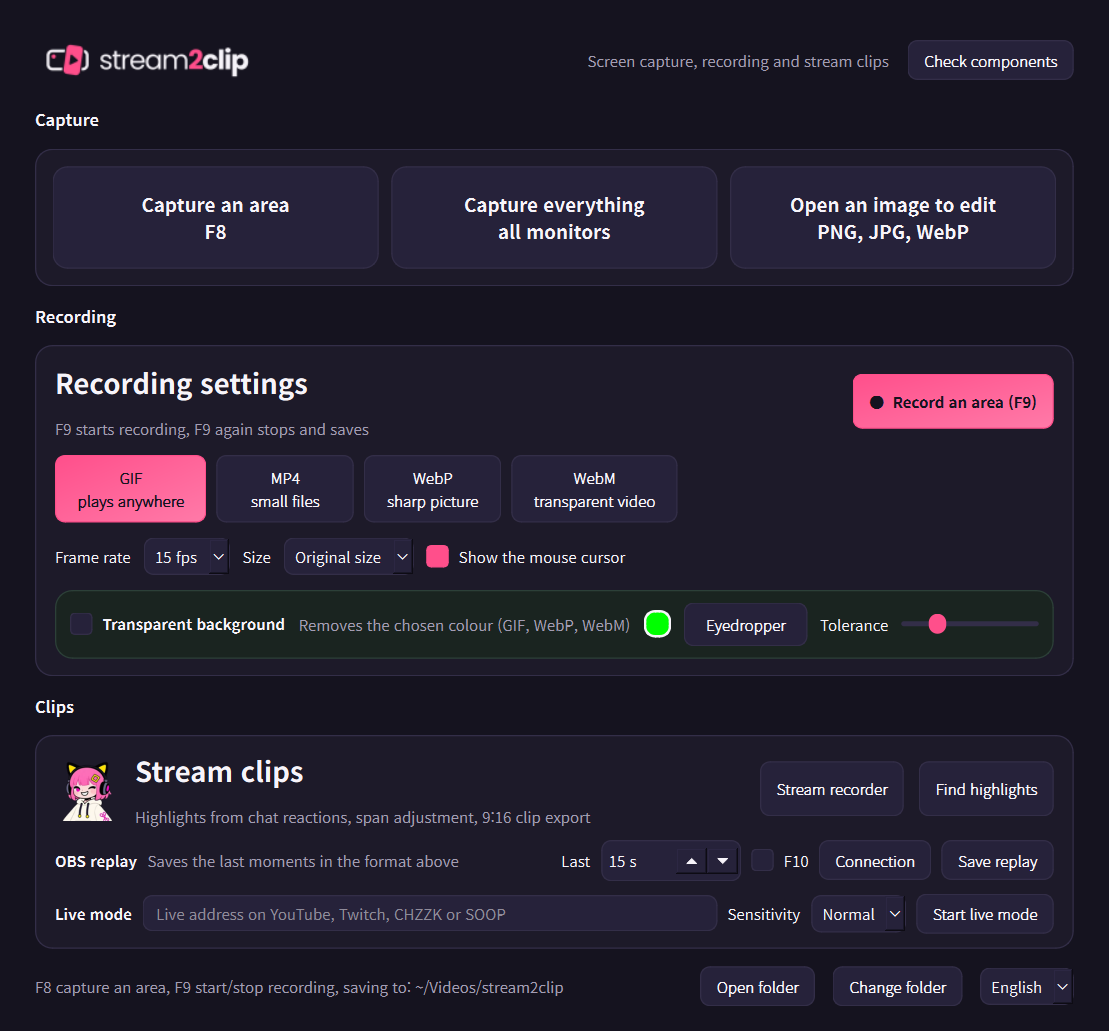
User manual

Installation, basic use, screen capture and recording, highlight clips, subtitles and translation, OBS, live mode, command line, troubleshooting